Empty States in SwiftUI with ContentUnavailableView
Empty states are the screens nobody designs and everybody ships. A list loads, returns nothing, and the user stares at white space wondering whether the app is broken or they just haven't added anything yet.
SwiftUI gives you a built-in answer that matches the system look, adapts to Dynamic Type, and handles VoiceOver correctly:
ContentUnavailableView(
    "No Landmarks",
    systemImage: "mappin.slash",
    description: Text("Landmarks you save will appear here.")
)
That covers the common case. The API has more shapes than most people use though, and the difference between a decent empty state and a good one is usually whether it gives the user something to do.
Every screenshot in this post comes from a small catalog app on GitHub. Each screen is the code shown next to it, captured in light and dark mode.
The Initializers
Title and image only. The minimum:
ContentUnavailableView("No Landmarks", systemImage: "mappin.slash")
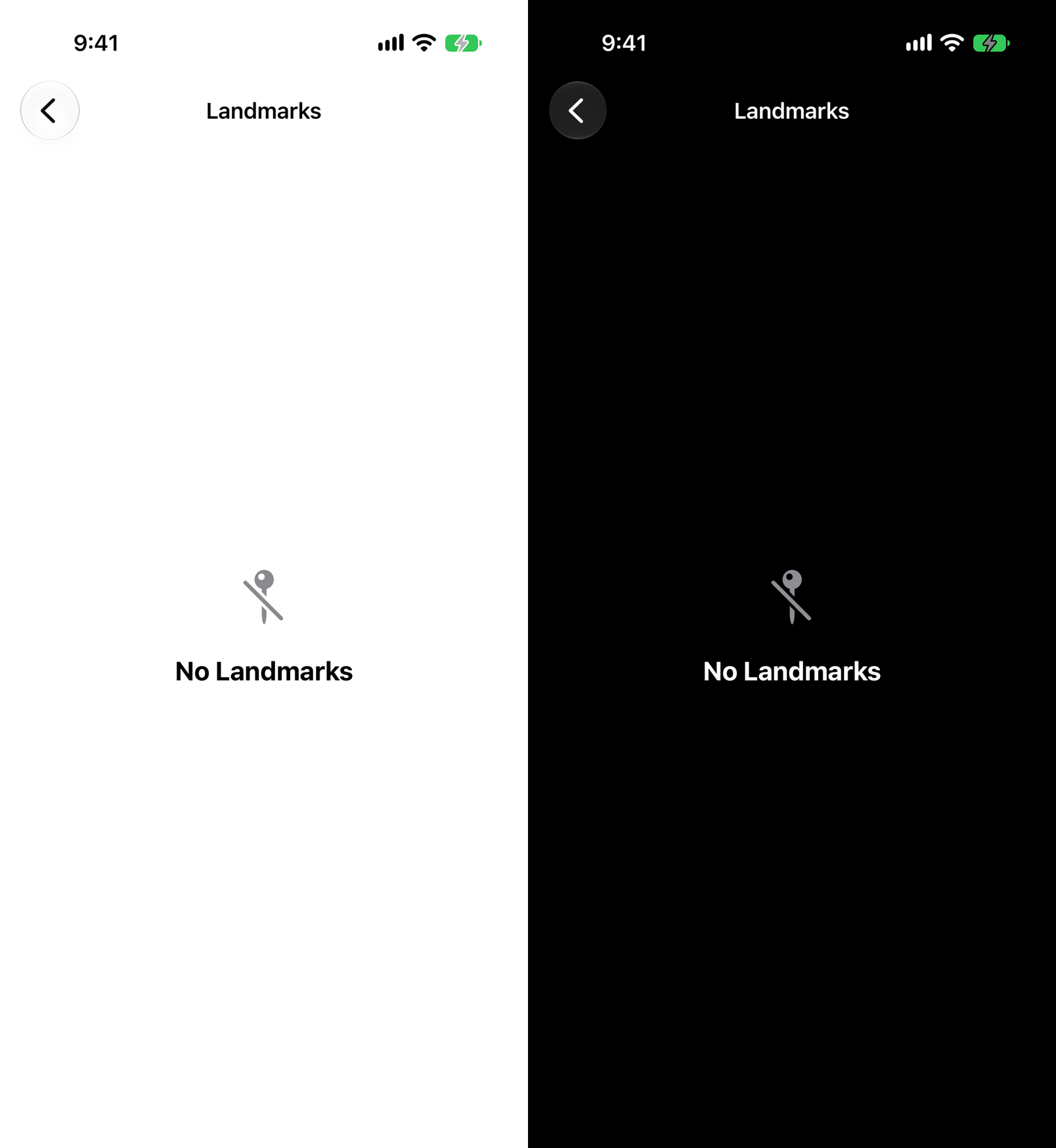
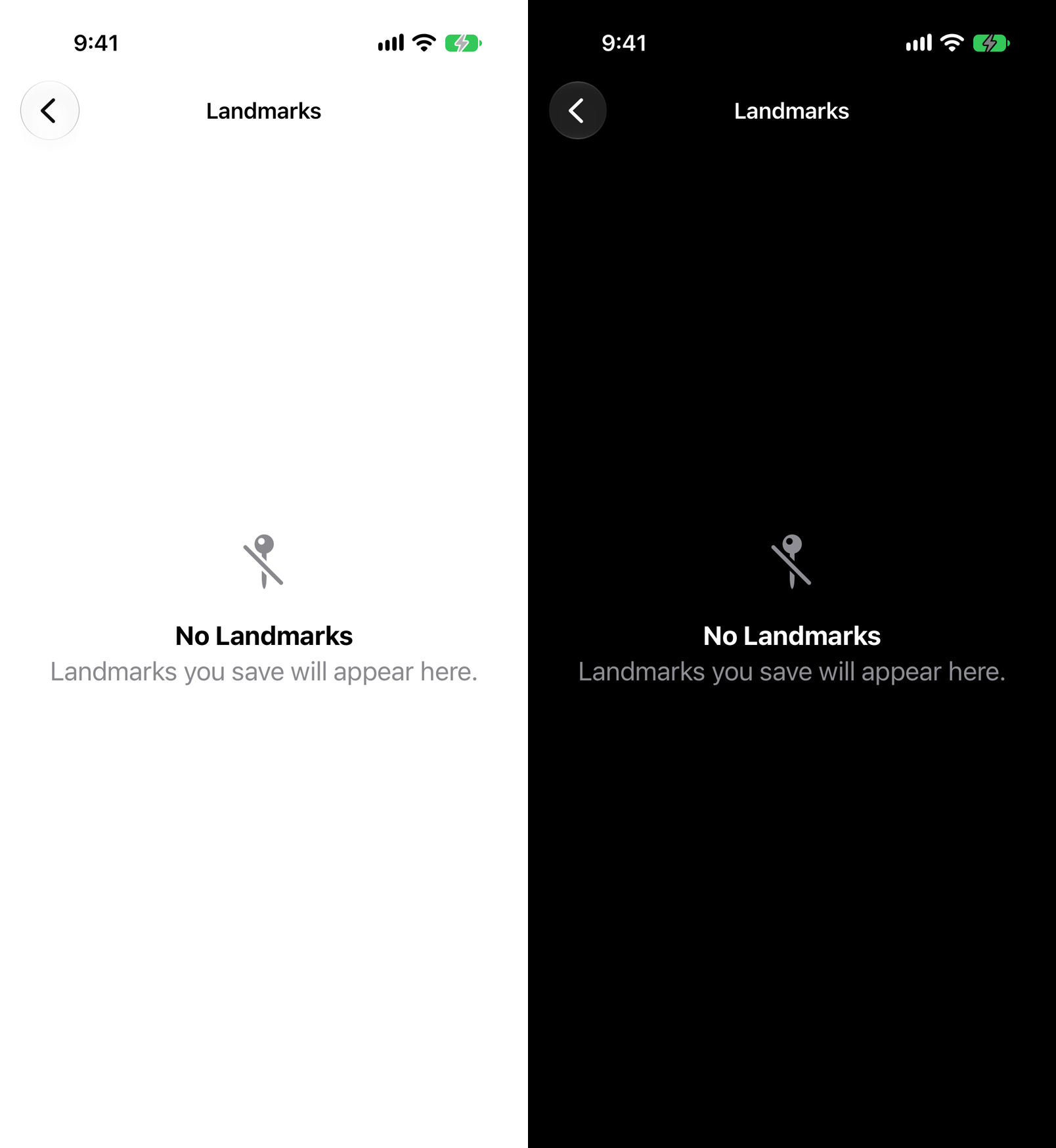
Title, image, and description. Note that description takes a Text, not a String - so you can style it:
ContentUnavailableView(
    "No Landmarks",
    systemImage: "mappin.slash",
    description: Text("Landmarks you save will appear here.")
)
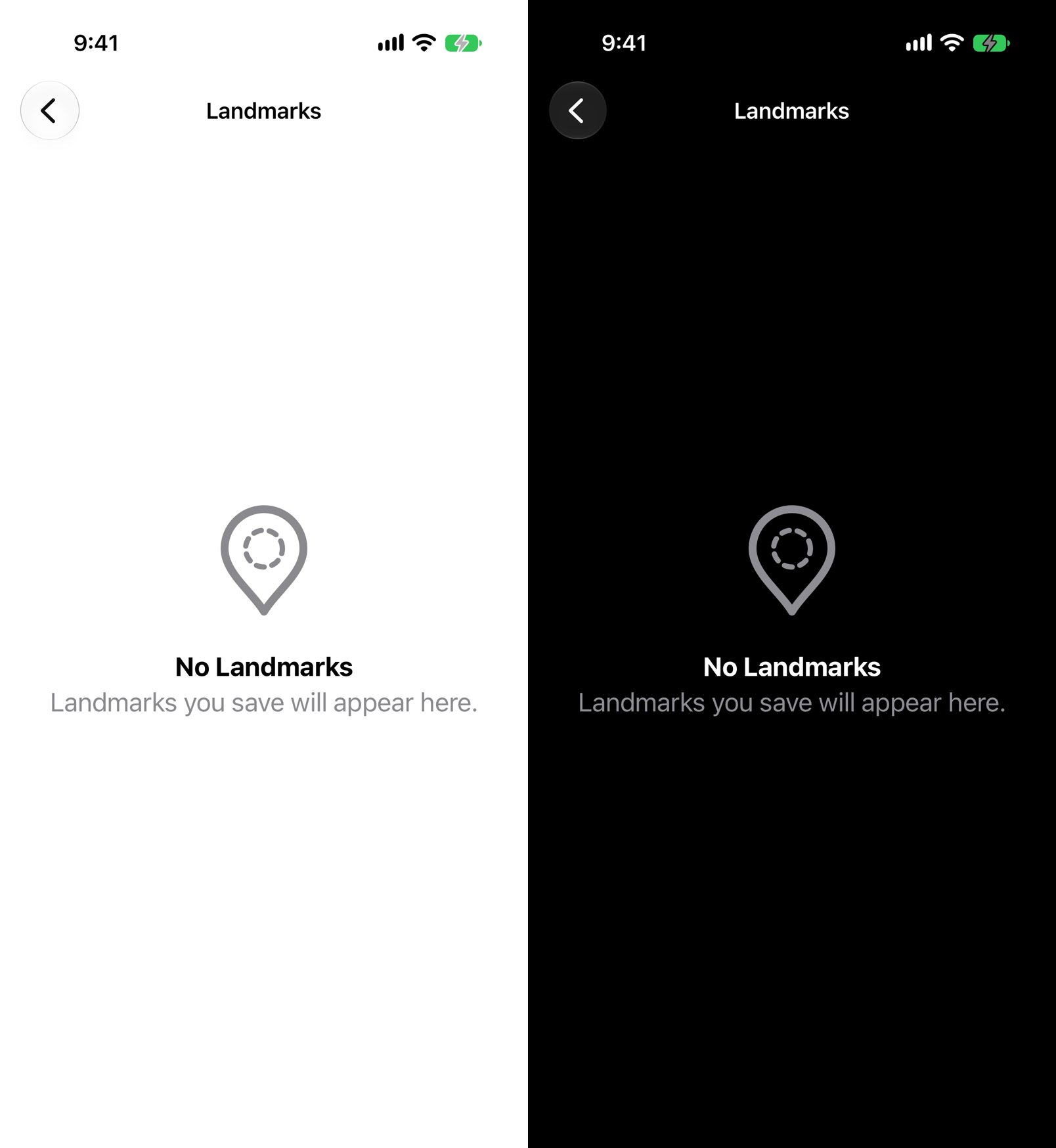
With a custom image from your asset catalog, using the image: label instead of systemImage::
ContentUnavailableView(
    "No Landmarks",
    image: "empty-landmarks",
    description: Text("Landmarks you save will appear here.")
)
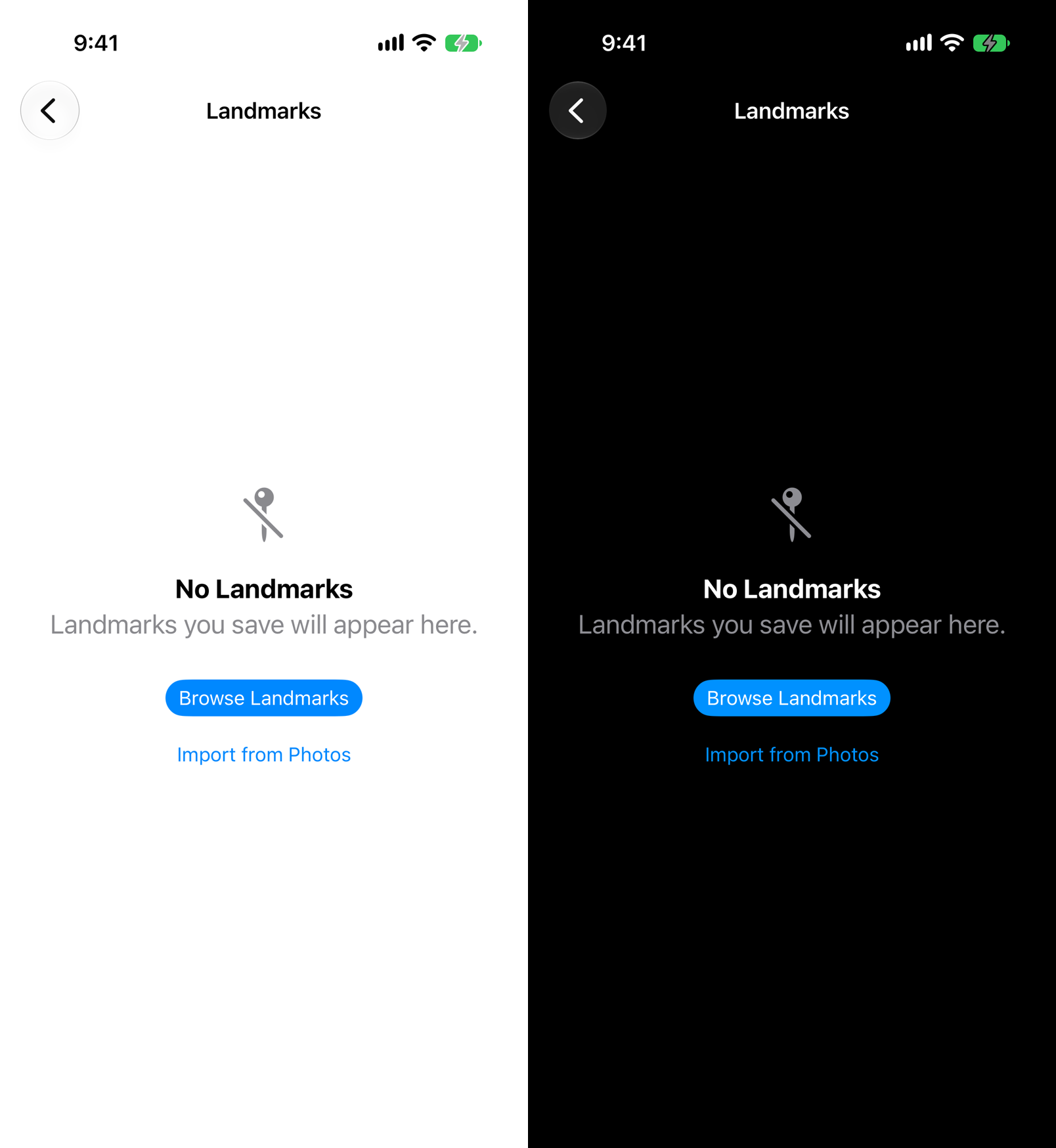
With actions, using the full view-builder form. This is the one that's underused:
ContentUnavailableView {
    Label("No Landmarks", systemImage: "mappin.slash")
} description: {
    Text("Landmarks you save will appear here.")
} actions: {
    Button("Browse Landmarks") {
        router.navigate(to: .browse)
    }
    .buttonStyle(.borderedProminent)

    Button("Import from Photos") {
        showingImporter = true
    }
}
An empty state with a button is a dead end turned into an entry point. If there's a reasonable next step, put it here.
The built-in search variant. Don't hand-roll this one:
ContentUnavailableView.search
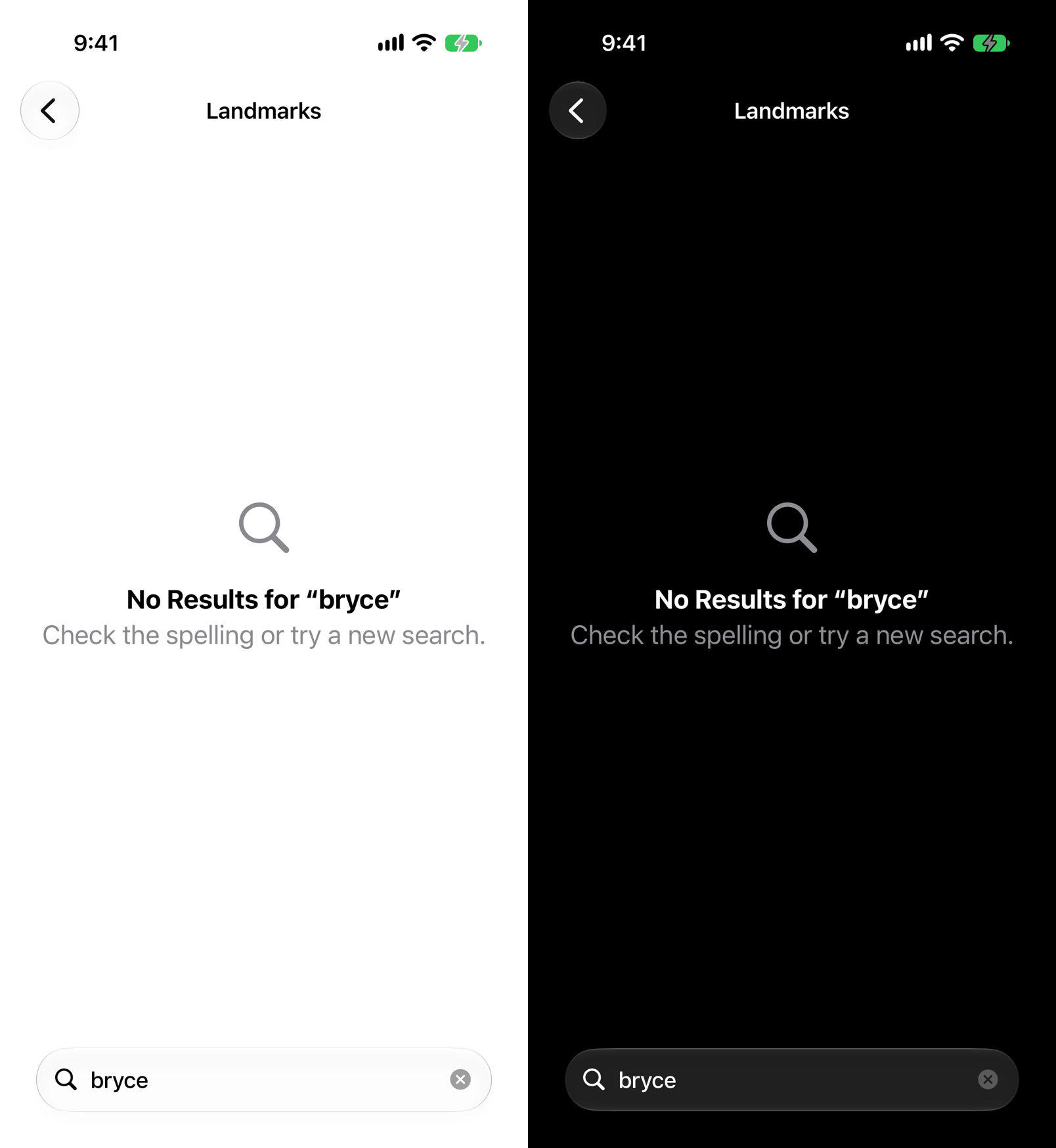
It reads the current search term from the environment and renders the system's standard "No Results" presentation, localized in every language you support. With an explicit term:
ContentUnavailableView.search(text: searchTerm)
That renders as "No Results for "bryce"" with correct quoting per locale. You will not match that by writing it yourself.
Wiring It Into a Real Screen
The naive approach is a branch around your list, which gets unwieldy once you have loading, error, empty, and search-empty states:
// This gets ugly fast
if isLoading {
    ProgressView()
} else if let error {
    ErrorView(error)
} else if landmarks.isEmpty && !searchTerm.isEmpty {
    ContentUnavailableView.search(text: searchTerm)
} else if landmarks.isEmpty {
    ContentUnavailableView("No Landmarks", systemImage: "mappin.slash")
} else {
    List(landmarks) { ... }
}
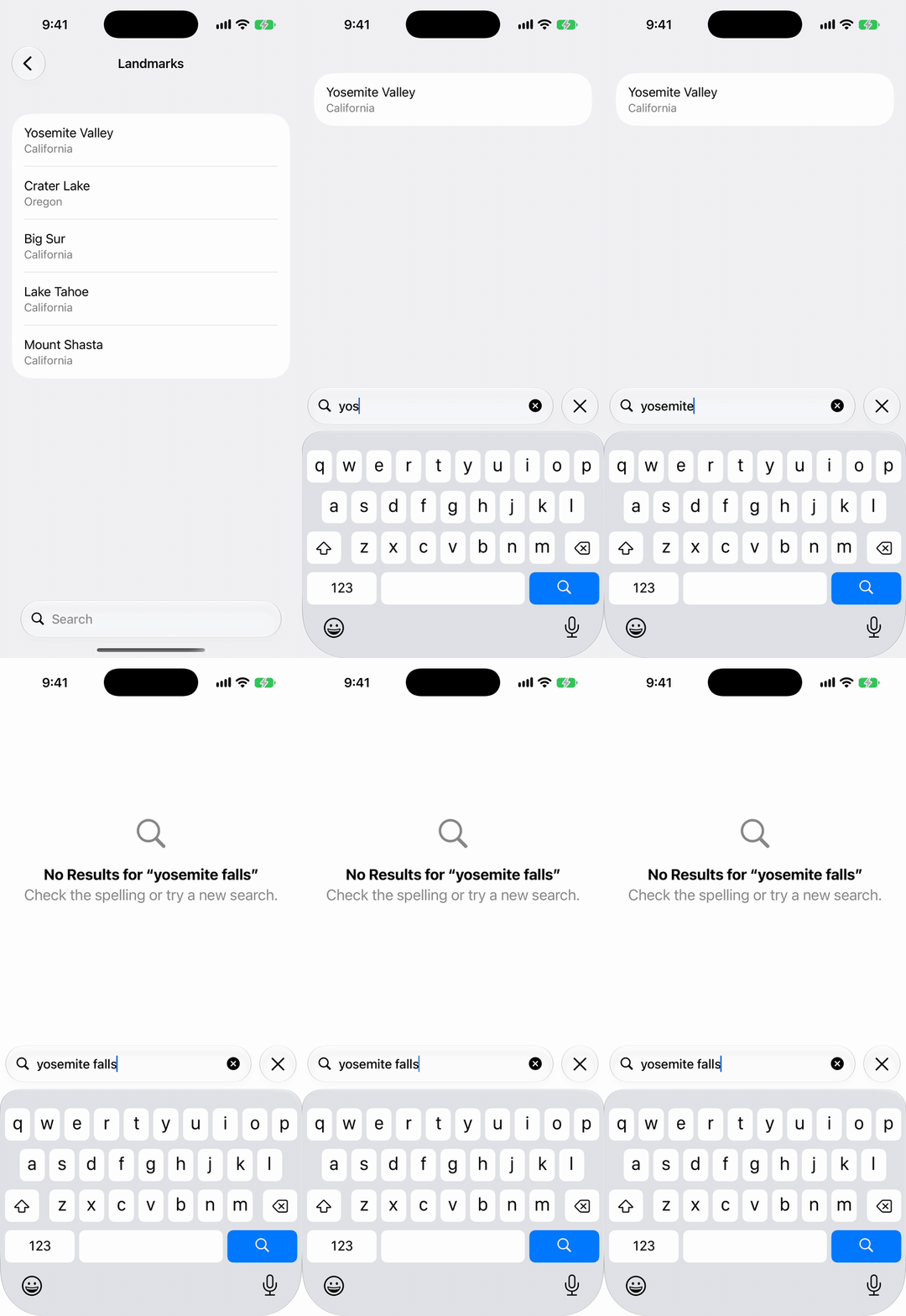
The cleaner version uses overlay, which keeps the list in the hierarchy so its scroll position, refresh control, and search bar all stay attached:
List(landmarks) { landmark in
    LandmarkRow(landmark: landmark)
}
.searchable(text: $searchTerm)
.refreshable { await store.reload() }
.overlay {
    if landmarks.isEmpty {
        if searchTerm.isEmpty {
            ContentUnavailableView(
                "No Landmarks",
                systemImage: "mappin.slash",
                description: Text("Landmarks you save will appear here.")
            )
        } else {
            ContentUnavailableView.search(text: searchTerm)
        }
    }
}
This matters more than it looks. With the if/else version, swapping the List out for a different view destroys the .searchable bar along with it - so the user gets "no results" and no way to change their search. With overlay, the search field stays put.
Modeling State Properly
Once you have more than two states, model them as an enum instead of juggling booleans:
enum LoadState<Value> {
    case loading
    case loaded(Value)
    case empty
    case failed(Error)
}
Then the view has one switch and no impossible combinations:
struct LandmarkListView: View {
    @State private var state: LoadState<[Landmark]> = .loading
    @State private var searchTerm = ""

    var body: some View {
        Group {
            switch state {
            case .loading:
                ProgressView("Loading landmarks")

            case .loaded(let landmarks):
                List(landmarks) { LandmarkRow(landmark: $0) }
                    .overlay {
                        if landmarks.isEmpty && !searchTerm.isEmpty {
                            ContentUnavailableView.search(text: searchTerm)
                        }
                    }

            case .empty:
                ContentUnavailableView {
                    Label("No Landmarks", systemImage: "mappin.slash")
                } description: {
                    Text("Landmarks you save will appear here.")
                } actions: {
                    Button("Browse Landmarks") { router.navigate(to: .browse) }
                        .buttonStyle(.borderedProminent)
                }

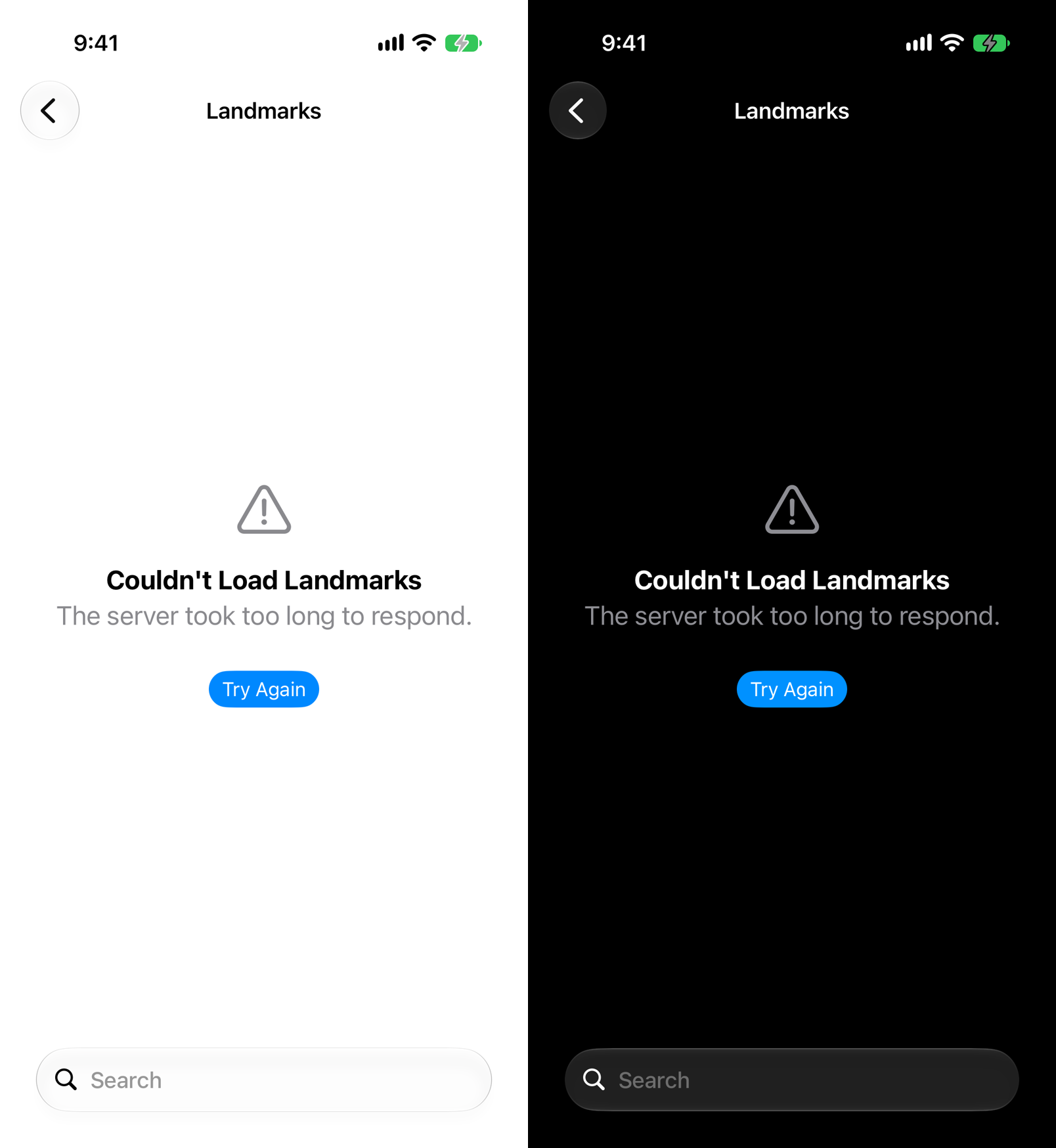
            case .failed(let error):
                ContentUnavailableView {
                    Label("Couldn't Load Landmarks", systemImage: "exclamationmark.triangle")
                } description: {
                    Text(error.localizedDescription)
                } actions: {
                    Button("Try Again") {
                        Task { await load() }
                    }
                    .buttonStyle(.borderedProminent)
                }
            }
        }
        .searchable(text: $searchTerm)
        .task { await load() }
    }
}
Note empty and loaded([]) are different states here on purpose. "You have no landmarks yet" and "your filter matched nothing" deserve different copy, and collapsing them is the most common empty-state bug.
Reusable Variants
If you show the same handful of empty states across screens, wrap them:
extension ContentUnavailableView where
    Label == SwiftUI.Label<Text, Image>,
    Description == Text,
    Actions == Button<Text>
{
    static func offline(retry: @escaping () -> Void) -> some View {
        ContentUnavailableView {
            Label("You're Offline", systemImage: "wifi.slash")
        } description: {
            Text("Check your connection and try again.")
        } actions: {
            Button("Retry", action: retry)
        }
    }
}
Honestly, the generic constraints get unpleasant. A plain function is usually clearer:
enum EmptyState {
    static func offline(retry: @escaping () -> Void) -> some View {
        ContentUnavailableView {
            Label("You're Offline", systemImage: "wifi.slash")
        } description: {
            Text("Check your connection and try again.")
        } actions: {
            Button("Retry", action: retry)
                .buttonStyle(.borderedProminent)
        }
    }

    static func noResults(term: String) -> some View {
        ContentUnavailableView.search(text: term)
    }
}
Then EmptyState.offline { await retry() } at the call site. Not clever, but readable and it compiles fast.
Writing the Copy
The API is the easy part. Most empty states fail on wording.
Say what the user will see here, not what's missing. "Landmarks you save will appear here" beats "No data available." One explains the feature; the other reads like an error.
Distinguish empty from broken. "No Landmarks" and "Couldn't Load Landmarks" are completely different situations for the user. If your network call failed, don't show the same screen as a genuinely empty collection - that teaches users the app is empty when it's actually offline.
Give an action when there is one. If the user can add a landmark, browse, retry, or clear a filter, put a button in actions:. An empty state with no way forward is a dead end.
Skip it while loading. Showing "No Landmarks" for 300ms before content arrives is worse than showing nothing. That's what the separate .loading case is for.
Fallback for Older Deployment Targets
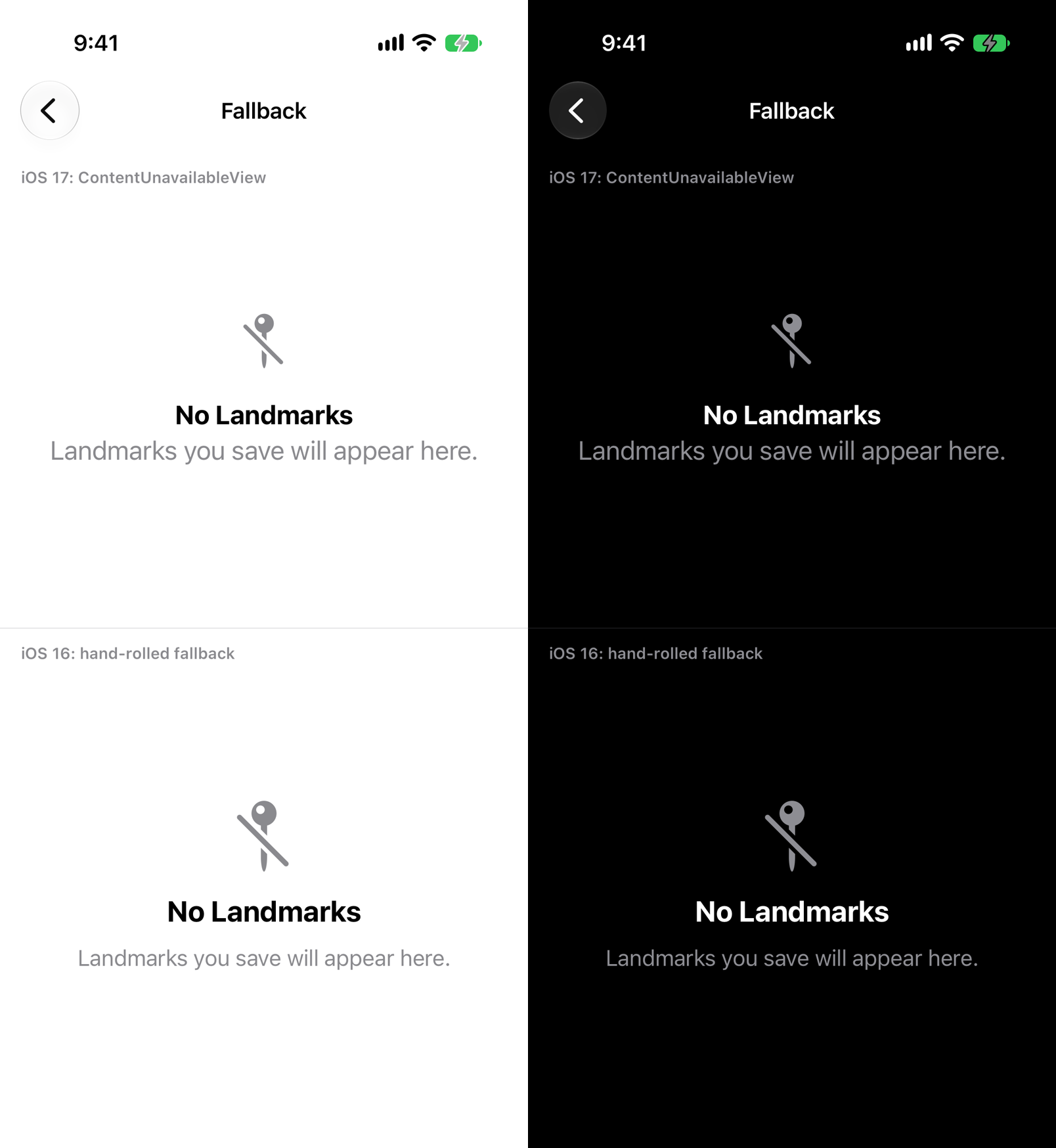
ContentUnavailableView requires iOS 17. If you're still supporting 16, gate it and keep a hand-rolled version behind the same call site:
struct EmptyStateView: View {
    let title: String
    let systemImage: String
    let description: String

    var body: some View {
        if #available(iOS 17, *) {
            ContentUnavailableView(
                title,
                systemImage: systemImage,
                description: Text(description)
            )
        } else {
            VStack(spacing: 12) {
                Image(systemName: systemImage)
                    .font(.system(size: 52))
                    .foregroundStyle(.secondary)
                Text(title)
                    .font(.title2.bold())
                Text(description)
                    .font(.body)
                    .foregroundStyle(.secondary)
                    .multilineTextAlignment(.center)
            }
            .padding(40)
        }
    }
}
Callers use EmptyStateView and never branch. When you drop iOS 16, delete the else.
Wrapping Up
- Four initializer shapes: title+image, plus description, custom asset image, and the full builder with
actions:. ContentUnavailableView.searchand.search(text:)are free, localized, and better than anything you'd write.- Prefer
.overlayover swapping the list out, so.searchableand.refreshablesurvive. - Model state as an enum. "Nothing yet" and "nothing matched" and "load failed" are three different screens.
- Put a button in it whenever a next step exists.
It's a small API, but empty states are disproportionately where an app feels finished or unfinished. Ten minutes per screen is a good trade.